

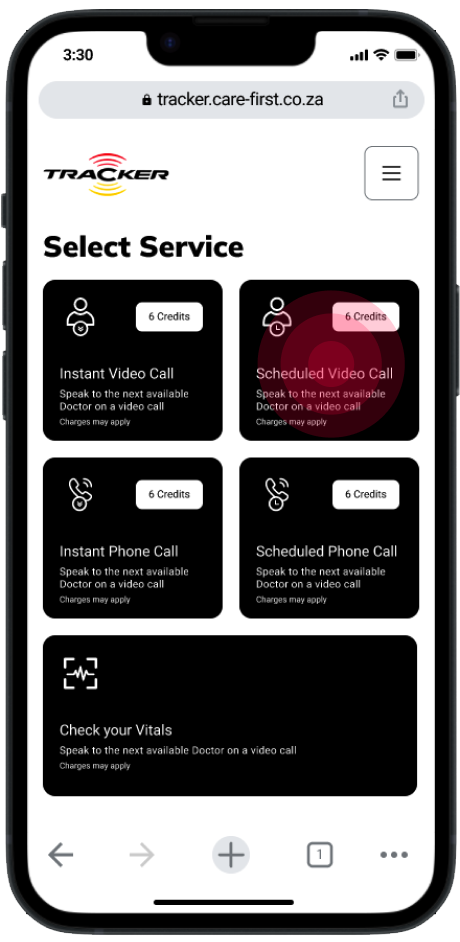
Step 01
To schedule a consultations users will have to click on the schedule video call card.
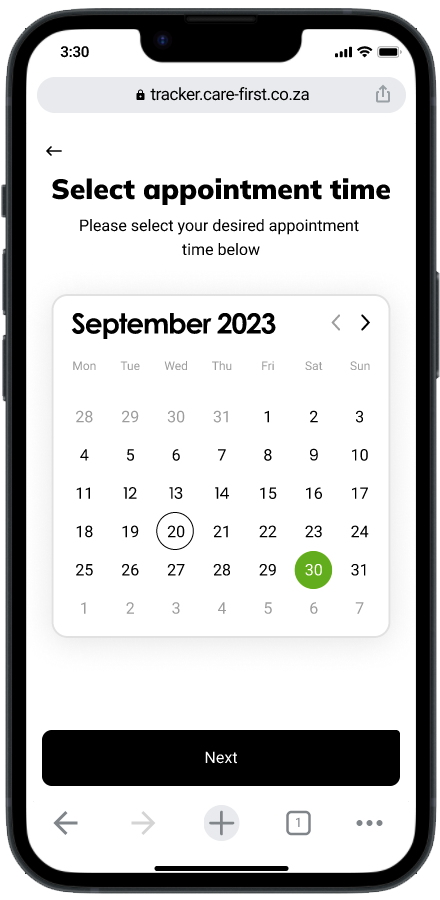
Step 02
Users will need to select a date for when they would like to have the consultation.
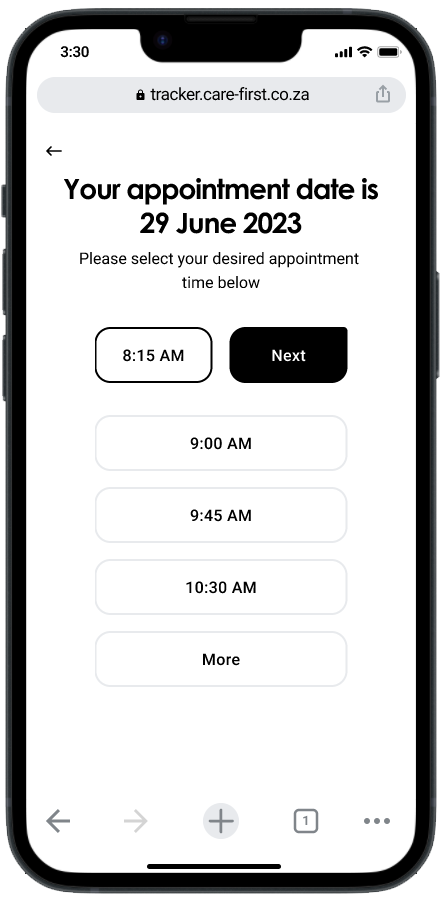
Step 03
Users will then select a time that they would like to schedule the consultation.
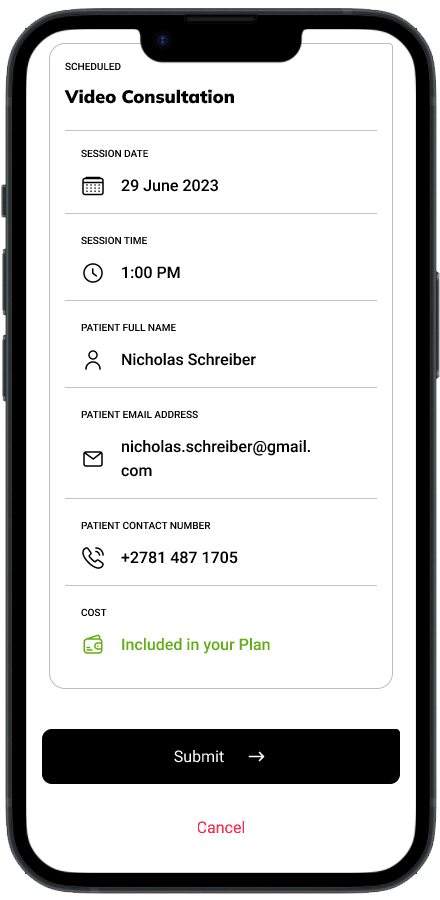
Step 04
The users will confirm their appointment details before proceeding.
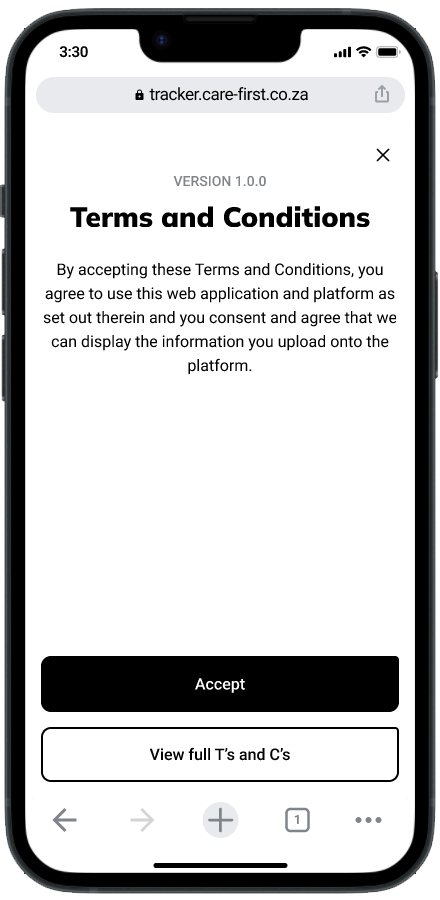
Step 05
Next the users will be able to verify their account via email and phone number. In this case we are using phone number as an example.
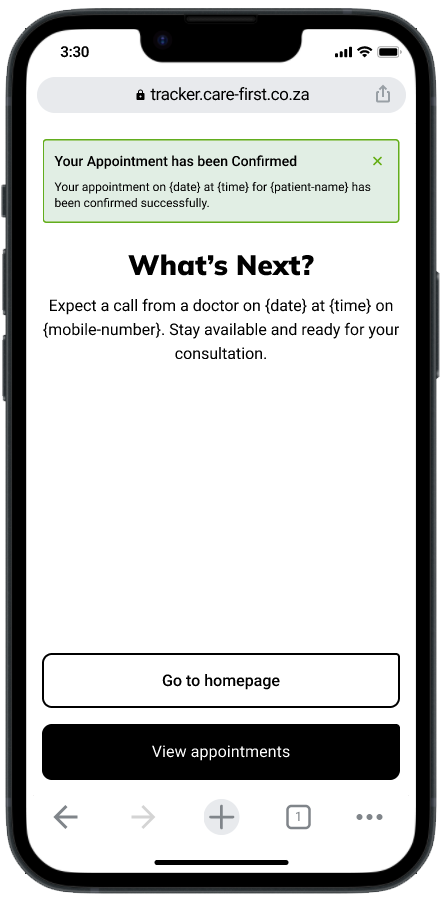
Step 06
A confirmation notification will appear showing that their appointment has been confirmed.
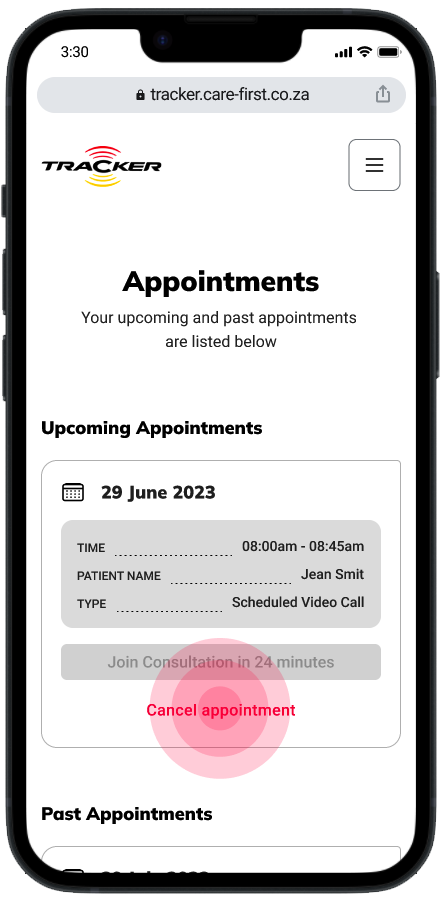
Step 01
The user Will be able to cancel their appointment from the appointments page.
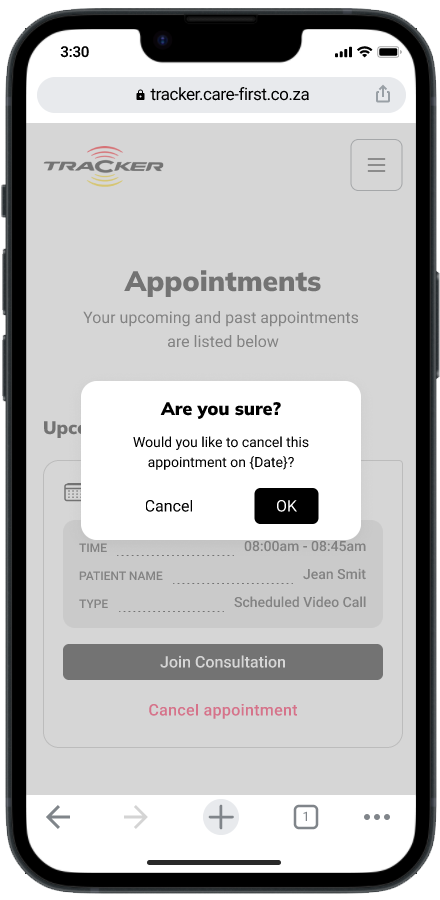
Step 02
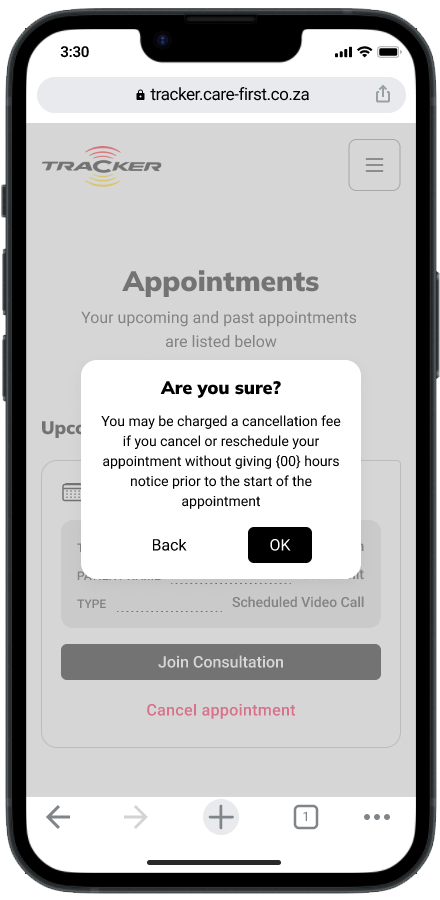
A toast notification will appear to confirm that the user wishes to cancel their appointment.
Step 03
If they cancel their appointment within x hours of their appointment they will still be charged a credit.
Step 04
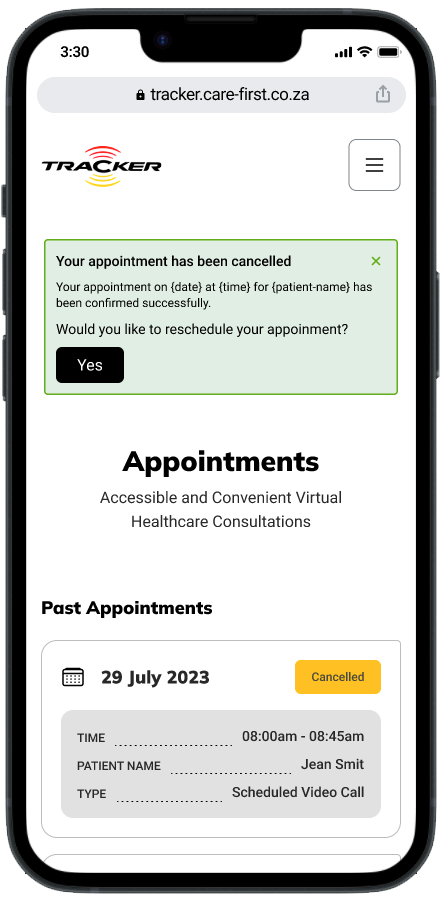
Once the user has confirmed they would like to cancel their appointment they will receive a notification to confirm that their appointment is canceled.
Step 01
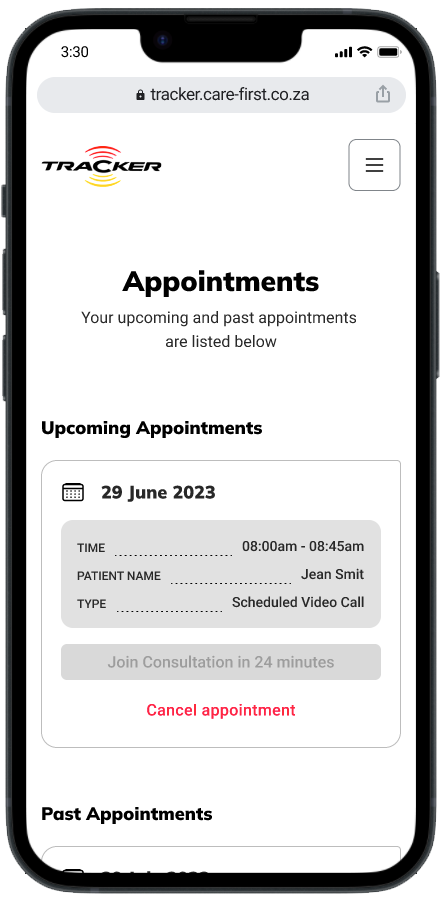
The user can view their appointments but will only be able to join the consultation x minutes before the consultation. The join button will be disabled until x minutes before the consultation.
Step 02
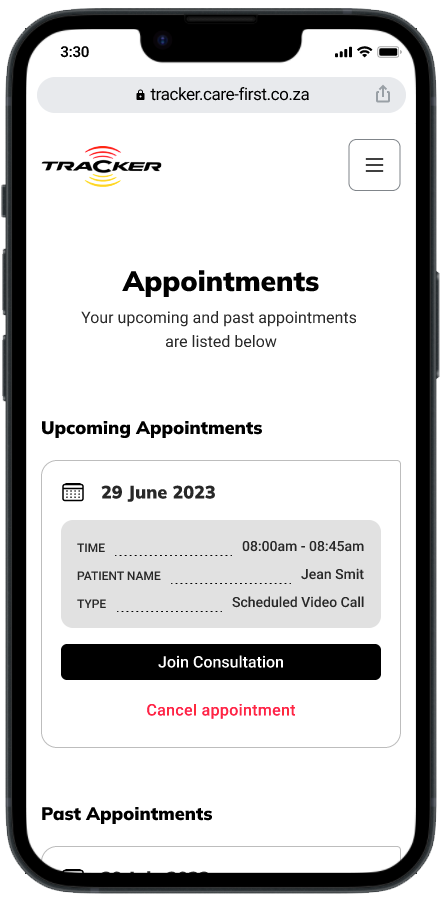
X minutes before the consultation the join button will become active and the user will be able to join the consultation.
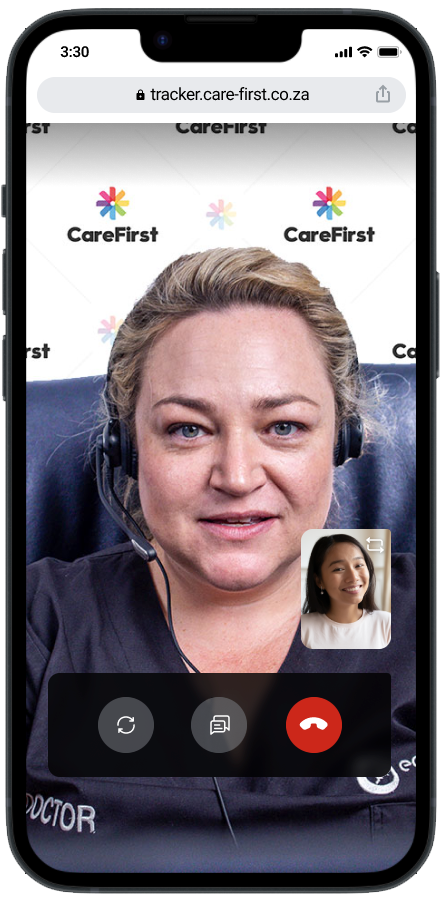
Step 03
Once the user has connected with the doctor they will be in the video consultation.
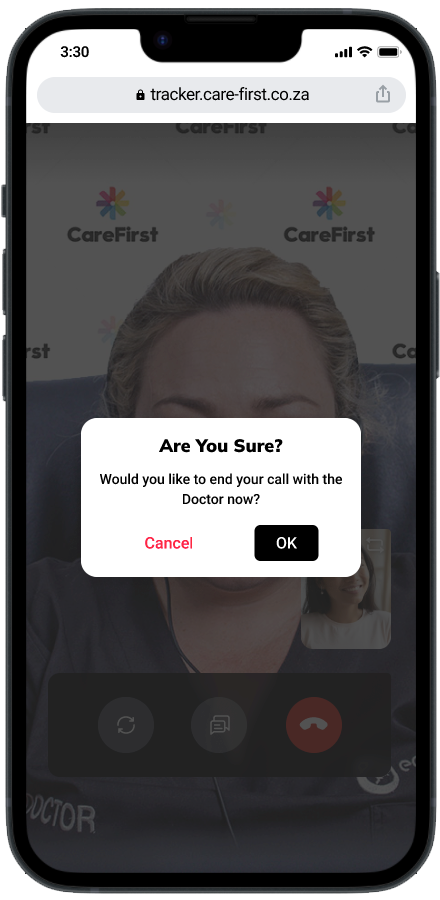
Step 04
Once the user presses the end call button they will receive a pop-up to confirm if they wish to end the call.
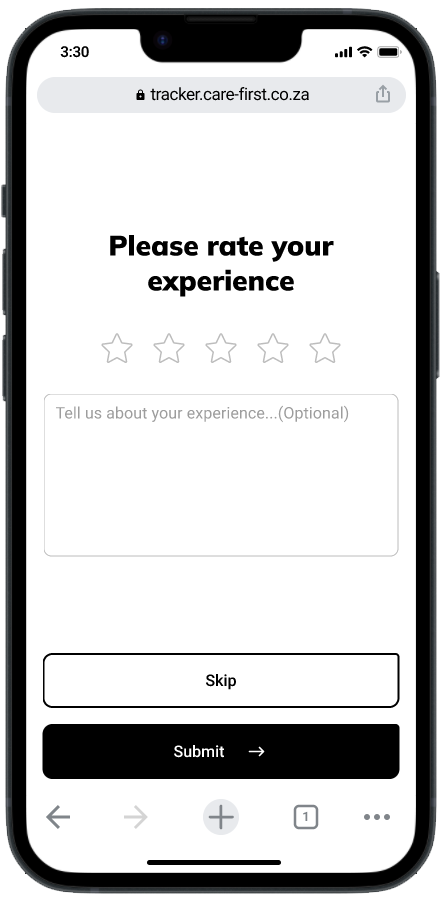
Step 05
Once the consultation is finished the user will be able to rate their experience or skip this step.
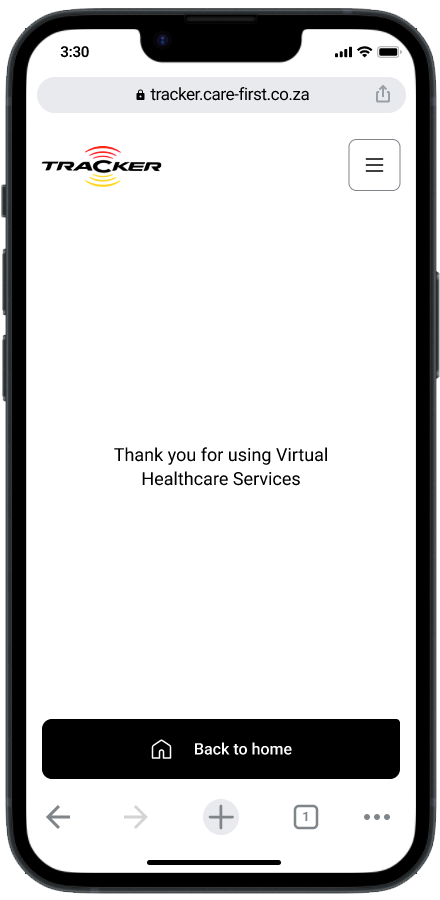
Step 06
The users will be given a thank you message for using the service.
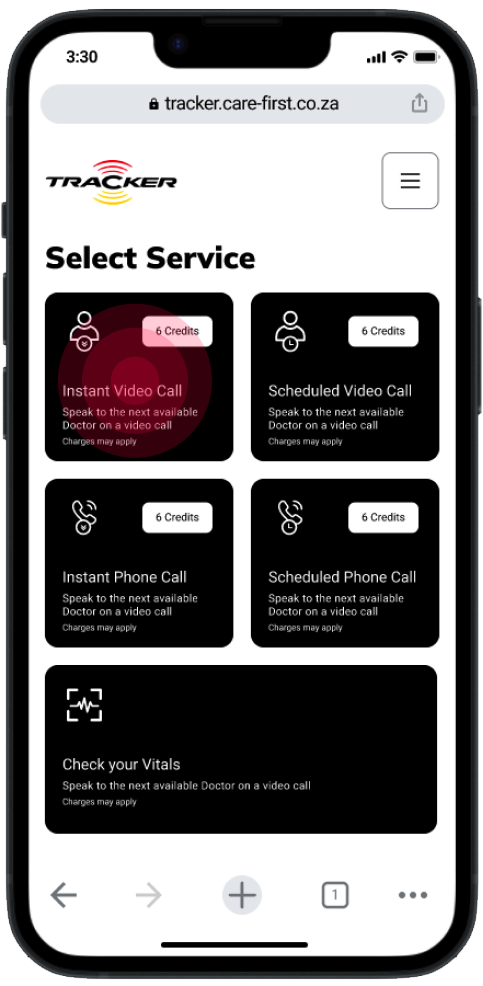
Step 01
To start an instant video call users will have to click on the instant video call card.
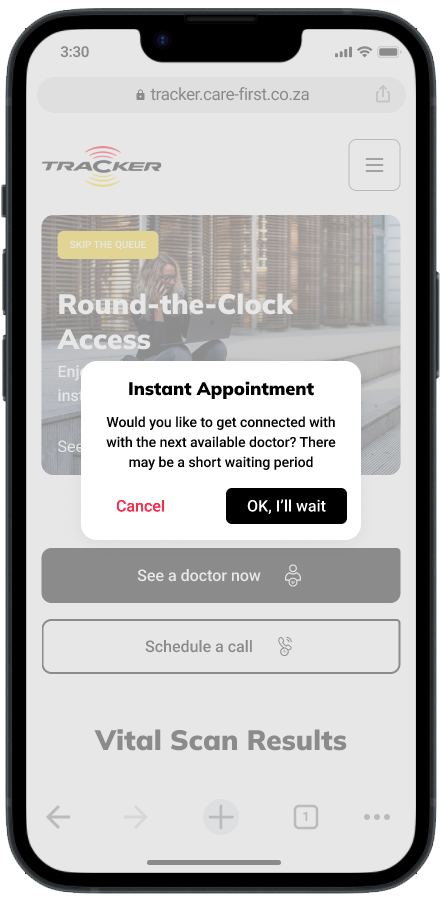
Step 02
A pop-up will show to confirm with the user that they would like to start an instant video call.
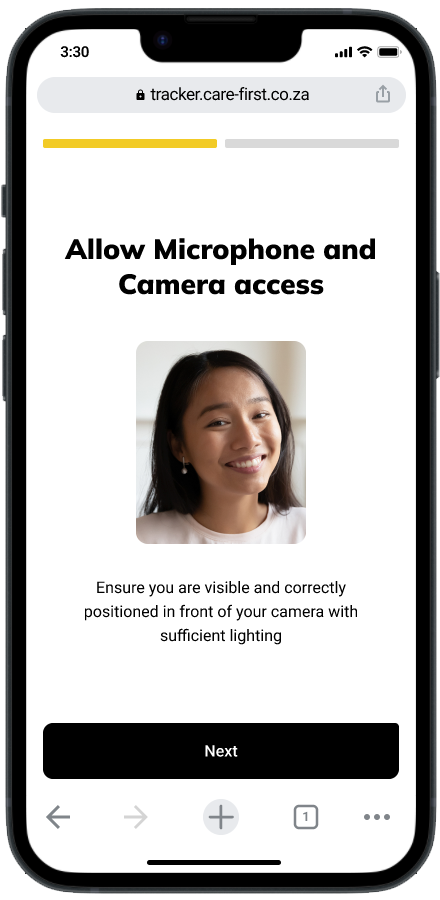
Step 03
Next then a system check to ensure the user video and audio is working. Users will be prompted to allow access to their camera and microphone.
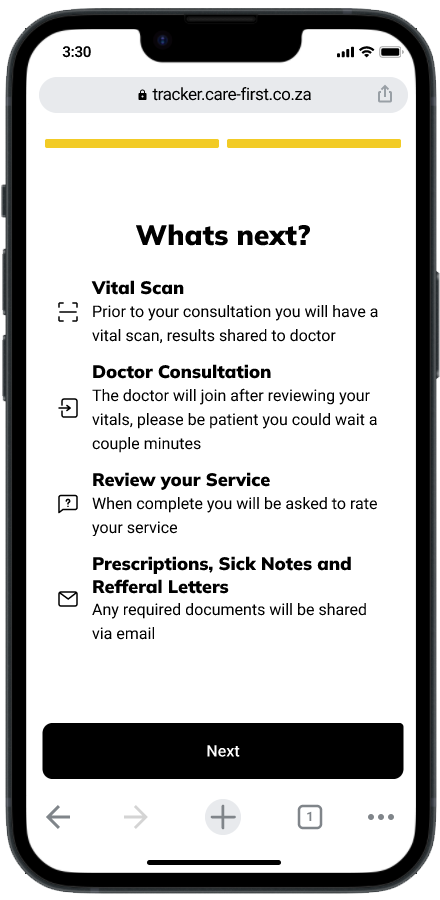
Step 04
Users will then be given an overview of the consultation process.
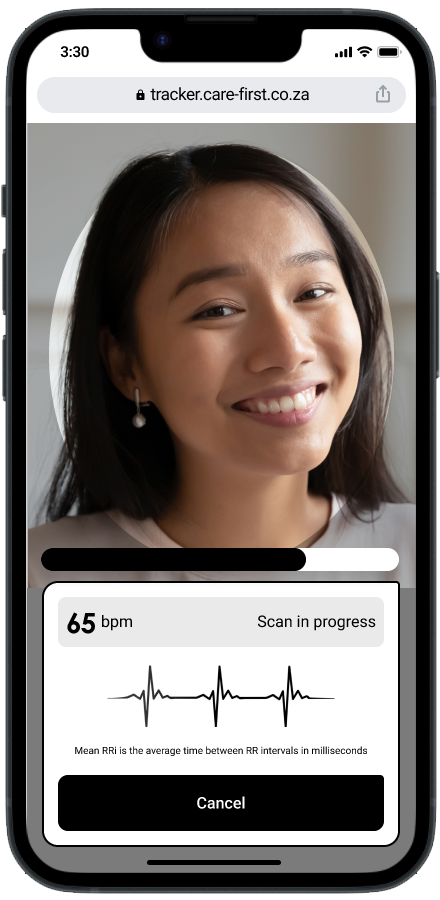
Step 05
A vital scan will begin and once completed will be shared to the doctor conducting the consultation. If the scan is failed the user will proceed directly to the consultation.
Step 06
User will be connected with their doctor.
Step 07
When the consultation is done the user can end the call and will be asked before the call is terminated.
Step 08
Once the consultation is finished the user will be able to rate their experience or skip this step.
Step 09
The users will be given a thank you message for using the service.